

At a time when centralized AI services such as ChatGPT, Claude or Gemini are dominating the headlines, many professional users are increasingly looking for an alternative - a local, self-controllable AI infrastructure. Especially for creative processes, sensitive data or recurring workflows, a local solution is often the more sustainable and secure option.
Anyone working with a Mac - especially with Apple Silicon (M1, M2, M3 or M4) - can now find amazingly powerful tools to run their own language models directly on the device. At the center of this is a new, largely unknown component: MLX, a machine learning framework developed by Apple that is likely to play an increasingly central role in the company's AI ecosystem in the coming years.




Latest news on MLX and Ollama
02.05.2026A current video goes into the topic in more depth and classifies the most important inference engines in detail. It becomes clear that it is not only the model itself that is decisive, but above all the „engine“ behind it - i.e. the engine that controls the calculation, memory accesses and communication. The comparison between Ollama, MLX, llama.cpp and vLLM shows how performance and areas of application can differ greatly, depending on the hardware and objectives. The role of MLX on Apple-Silicon devices is particularly exciting, as new efficiency gains are possible here thanks to the architecture. At the same time, it is clear that there is no universal solution: Depending on the scenario - local, server-based or scaling - different engines make sense. The video therefore adds an important strategic perspective to the current MLX development.

Ollama, MLX, llama.cpp or vLLM? How to choose the motor for YOUR AI! | Giorgi Lomidze
30.03.2026: With the current preview version Ollama integrates Apple's MLX framework as a backend for Apple-Silicon Macs for the first time. The aim is to significantly accelerate local AI and make better use of the hardware. MLX uses the unified memory architecture of modern Macs, allowing data to be shared efficiently between CPU and GPU without constant copying. The result is noticeable improvements in „time to first token“ and generation speed.
Initial benchmarks and reports speak of significant performance gains through to greatly increased token rates and more efficient memory usage. The video linked in the article clearly shows why this change is so important: the previous llama.cpp stack is being replaced by MLX, making local AI on the Mac truly fluid and suitable for everyday use for the first time. At the same time, the function remains a preview, meaning that limitations and further optimizations are to be expected. Overall, the move marks an important transition towards fast, locally running AI on consumer hardware.
What is MLX - and what does the new format stand for?
MLX is an open source framework from Apple for machine learning that is specially tailored to the hardware architecture of Apple Silicon. In contrast to other AI backends such as PyTorch or TensorFlow, MLX directly utilizes the advantages of Apple's so-called „unified memory“ - i.e. the shared access of CPU and GPU to the same RAM area. This ensures significantly more efficient processing of data and models - especially for large language models, which can comprise several gigabytes.
The associated MLX format typically describes models whose weights are stored in a compressed .npz file format (NumPy Zip). Models such as Mistral, Phi-2 or LLaMA 3 can be converted into this format using appropriate tools and run directly on a Mac - without a cloud, without an API, without restrictions.
In another article I present a Comparison between Apple Silicon and NVIDIA and explain which hardware is suitable for running local language models on a Mac.
The current situation: What Apple already offers
With the announcement of Apple Intelligence in 2024, Apple has started to integrate system-wide AI functions directly into the operating system. Writing assistants, image processing, semantic search, intelligent mail functions - much of this runs completely locally, especially on devices with an M1 or newer chip. However, none of the new functions are available on older Intel Macs.
At the same time, Apple has further developed the MLX framework and published it under an open license. In combination with tools such as mlx-lm or the new MLX Swift API, it is already possible to run text models locally, set up your own workflows or train models - directly on your own Mac, without data leaving the device.
Professional users in particular - for example from the fields of software development, publishing, marketing or research - can benefit greatly from this, as MLX gives them completely new opportunities to integrate AI models into their workflows without having to rely on external providers.
How MLX works in practice
If you want to use MLX today, all you need is a terminal, Python (ideally in a separate virtual environment) and the mlx-lm package, which bundles all the necessary functions: Model download, quantization, inference and chat. After installation, ready-made models from the Hugging Face community can be started - for example:
mlx_lm.chat --model mlx-community/Mistral-7B-Instruct-v0.3-4bit
Alternatively, you can also access the API using a Python script. The models are automatically loaded, cached and executed locally - without an internet connection after the initial download.
It is also easy to convert your own models. With a single command, you can download models from the Hugging Face Hub, quantize them and make them available for MLX:
python -m mlx_lm.convert --hf-path meta-llama/Llama-3-8B-Instruct -q
The resulting .npz files can then be permanently saved locally and reused.
The comparison: MLX vs. Ollama, Llama.cpp and LM Studio
In addition to MLX, there are several established alternatives for local AI use on the Mac - above all Ollama, Llama.cpp and LM Studio. Each of these tools has its strengths, but also specific limitations.
Ollama
Ollama is particularly popular with developers because it offers a simple command line and REST API. The models are available here in the so-called GGUF format, an optimized file format for fast execution on local machines. Ollama is quick to set up, flexible and supports a wide range of models. However, Ollama does not currently run on the Mac with the MLX engine, but primarily uses a metal-based backend via llama.cpp.
For workflows that require automation or headless operation (e.g. processes running in the background), Ollama is currently the first choice. However, if you want to use Apple's own optimizations, you will have to wait for future MLX integrations.
Llama.cpp
This project forms the basis for many other tools (including Ollama) and offers a very high-performance inference engine for GGUF models. It is extremely flexible, but not always easy to use or operate - especially for beginners. The big advantage: there is a huge community, many extensions and stable development.
LM Studio
Anyone looking for a graphical user interface usually ends up with LM Studio. The tool combines the download, administration and execution of language models in a lean, Mac-native app - including a chat interface, configuration and model management. The highlight: LM Studio has also supported the MLX engine for a few months now, allowing you to take full advantage of Apple's optimizations on an M1 or M2 Mac - and with significantly lower RAM consumption than comparable tools.
LM Studio is the ideal entry point into the world of local AI, especially for users who don't want to bother with terminal commands - and in combination with MLX, it is a real high performer.
Fine-tuning made easy: How FileMaker 2025 brings LoRA training into everyday life
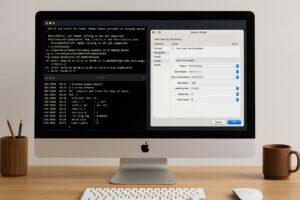 While MLX and Ollama show how language models can be operated locally and integrated into existing processes, the next step goes much further: the targeted adaptation of these models to your own data. This is precisely where the approach with FileMaker 2025 from the Apple subsidiary Claris to. Instead of isolated training environments, a structured interface is created in which data records, training parameters and model versions can be managed centrally. LoRA training can be prepared, started and reproduced using clearly defined processes - without having to control each step manually via scripts or command lines. This turns experimental fine-tuning into a reproducible workflow that can be integrated into existing business processes. This is a decisive advantage, especially for companies that work with their own data: the AI does not remain general, but is trained specifically for its own context.
When MLX on Silicon is the better choice
While GGUF-based solutions (Ollama, Llama.cpp) are very flexible and run on many platforms, MLX scores with its deep integration into the Apple world. Particularly noteworthy are:
- Efficient memory utilization through unified memory
- Optimization for Metal/GPU without complex configuration
- Seamless integration into Swift projects and Apple frameworks
- Future-proof, as Apple is actively developing the framework further
- Expandability, e.g. through own models, fine-tuning and system integration
For Mac users who want to plan for the long term and retain full control over their data, MLX is already a promising entry into the world of local AI - with the potential to become the standard in the future.
From local AI to real business processes: Where ERP systems come into play
 What is often underestimated in this context: The real strength of local AI systems such as MLX or Ollama lies not only in the model itself, but also in their integration into existing workflows. Interfaces and APIs in particular make it possible not to use AI in isolation, but to integrate it directly into operational processes - for example when analyzing data, automating texts or supporting decisions.
This is precisely where a powerful ERP system becomes the central link: it provides the data, structures processes and ensures that AI results are not only generated but also processed in a meaningful way. Anyone who seriously wants to use local AI productively will therefore need a well thought-out system landscape in the long term. Further information can be found on the page ERP software, at which a FileMaker-based ERP system will be presented. FileMaker Server supports the hosting of MLX language models from version 2025 onwards directly on the database server and provides the corresponding script commands. The software from Apple subsidiary Claris runs on Apple Mac, Windows and mobile iOS devices.
On-Premises AI in the Enterprise: The Model Is Only Part of the Decision
 For companies, the question of whether MLX, Ollama, or another system is the right choice cannot be answered solely on the basis of benchmarks and model sizes. Rather, the decisive factors are what data needs to be processed, where that data is currently stored, and into which existing business processes the AI is to be integrated. A local solution can offer significant advantages, particularly when it comes to confidential customer, product, or company data. In other cases, a high-performance cloud model makes more economic sense—or a combination of both approaches.
As part of my AI Consulting for Small and Medium-Sized Businesses That’s why I first examine the data set, processes, and specific use cases before making any decisions about models or hardware. This analysis yields three prioritized use cases as well as a well-reasoned recommendation for on-premises AI, the cloud, or a hybrid architecture. After all, the crucial question is not which language model is technically the most interesting, but rather which solution delivers a demonstrable economic benefit for the specific company.
An outlook: Where Apple wants to go with MLX and Apple Intelligence
 With WWDC 2025, Apple has clearly signaled that MLX is not a gimmick, but a strategic component in the growing Apple ecosystem around AI. The integration of the new „Foundation Models“ directly into macOS and iOS, native Swift support and the further development of MLX in the direction of training, quantization and inference clearly show that Apple wants to get involved - but in its own way. In another article, I show where Apple with Siri and Gemini as part of the partnership with Google.
In doing so, Apple remains true to its line: no spectacular promises, but solid, locally functioning technology that proves itself in the long term. For professional users, this is not only appealing, but also strategically highly interesting.
MLX is well on the way to becoming the standard solution for local AI on the Mac. Those who are already working with it today are gaining a valuable head start - whether for creative, technical or analytical applications. In combination with tools such as mlx-lm, LM Studio or the new Swift API, a robust, reliable and future-proof AI environment can be created - in line with the controlled, data-sovereign way of working that will become increasingly important in the future.
Current survey on artificial intelligence
Using MLX on the Mac - simple instructions for beginners
With MLX, Apple has created a new system that allows you to use artificial intelligence (AI) directly on your own Mac - without an internet connection, without the cloud, without dependence on Google or OpenAI. The great thing about it: if you have a Mac with an M1, M2, M3 or M4 processor (i.e. Apple Silicon), you can try MLX in just a few steps. Everything runs locally - your texts, questions and data never leave your computer.
Here I explain step by step how to download and use a so-called language model with MLX. It sounds technical - but you'll see that it's easy to do.
Step 1: Check requirements
First you need:
- A Apple Silicon Mac (M1 or newer). You can find this in the system settings under "About this Mac".
- macOS 13 (Ventura) or newer.
- A working internet connection - only for downloading the model, after that everything runs offline.
- Some storage space, at least approx. 8-10 GB for a small model.
You also need the program called „Terminal“, which is already pre installed on every Mac. We use it to enter a few commands. You can find it on your Mac under „Programs/Utilities“ or simply type and then „Terminal“ and confirm with „Enter“. Don't worry - you just need to copy and paste.
Step 2: Python (only if necessary)
MLX works with the Python programming language. Many Macs already have Python installiert. You can check whether it is available by entering the following in the terminal:
python3 --version
If you get a version number (e.g. Python 3.10.6), you can continue directly.
If not, I recommend using Homebrew to installieren (a popular tool for programs on the Mac). To do this, enter in the terminal:
/bin/bash -c "$(curl -fsSL https://raw.githubusercontent.com/Homebrew/install/HEAD/install.sh)"
Then install Python with:
brew install python
Step 3: MLX-Tool
Now we download the MLX tool with which you can later use the language model. To do this, installier a small program called mlx-lm. Enter it in the terminal:
pip3 install mlx-lm
This will take a few seconds. When it is finished, you are ready to load a model.
Step 4: Download and start a model
Now comes the exciting part: You get a real language model on your Mac - for example a version of Mistral, a very powerful, freely available AI model. Simply enter it into the terminal:
mlx_lm.chat --model mlx-community/Mistral-7B-Instruct-v0.3-4bit
This command does three things:
- The model is downloaded automatically (once).
- It is prepared and started.
- You end up in a chat window in the terminal where you can ask questions - similar to ChatGPT.
When the download is complete (may take a few minutes depending on your internet speed), you will see a flashing cursor. You can now write, for example:
Tell me something about the history of Venice.
...and the model responds directly - completely offline.
Step 5: Continue working with the model
When you are finished, you can end the chat by typing exit or closing the window. Later you can reuse the same model without downloading it again by simply entering the same command again. The model is now stored locally on your Mac and remains there.
If you would like to try out different models, you can do so via Hugging Face or change the model name directly in the terminal line - e.g:
mlx_lm.chat --model mlx-community/Phi-2-4bit
Each model has a different style - some are factual, others are more creative or dialog-oriented.
Even easier? Use LM Studio as an interface
If you prefer to work with a mouse and window, you can also try the LM Studio program. It has a nice interface, supports MLX (on Apple Silicon) and allows you to download and use models with a click.
You can get LM Studio here:
After installation, you can select „MLX“ as the engine in the settings - the program then uses the same technology as above, but in a pretty window with a chat field.
You've done it - you can now use a modern AI completely locally on your Mac, without any cloud or subscription. Apple MLX makes it possible to operate language models efficiently, securely and in a privacy-friendly way.
If you want to go even deeper later - for example, train your own models, improve them with your texts or incorporate them into your own software (such as FileMaker) - then MLX is the right way to go. But the first step is done: you have control back - and a powerful AI directly on your computer.
From local model to real AI memory
 The article on MLX clearly shows how powerful local AI has become directly on Apple hardware - especially thanks to the close integration with the architecture of Apple Silicon and optimized frameworks. Ollama focuses more on simple integration, APIs and flexible workflows, while MLX is deeply embedded in the Apple ecosystem and offers enormous long-term potential. This is precisely where the new series of articles comes in: It goes one step further and shows how these local AI models can be expanded to include a real „memory“. Instead of just executing models, a knowledge base is built up that the data export of your own chat histories from ChatGPT and makes it semantically searchable. This makes local AI not just a tool, but a personal system that grows with your own knowledge.



Frequently asked questions
What exactly is MLX - and how does it differ from PyTorch or TensorFlow?
MLX is a machine learning framework developed by Apple and specifically optimized for Apple Silicon (M1-M4). Unlike PyTorch or TensorFlow, which target many platforms, MLX specifically uses the architecture of Apple chips - e.g. the common memory structure (unified memory) and metal GPU acceleration. This makes it more memory efficient and faster on Macs - but only on Apple hardware.
Why should you choose MLX over a tool like Ollama or Llama.cpp?
MLX has an advantage if you are working specifically on Apple Silicon and want to get the maximum performance out of the device. Ollama and Llama.cpp are very flexible, but often run less efficiently on the Mac. MLX can also be integrated directly into Swift projects - ideal for developers building applications close to Apple. It is not a competitor to Ollama - but a specialized tool for professionals.
Which models are compatible with MLX?
Many open language models are compatible - such as Mistral, LLaMA 2 and 3, Phi-2 or TinyLLaMA - which are either already converted or can be converted using the mlx-lm.convert tool. It is important that they are available in NumPy-ZIP format (.npz) and are prepared for MLX. There is now a separate section on Hugging Face for MLX-compatible models.
How easy is it to get started? Do I have to be a developer?
A little technical understanding is helpful - e.g. for the terminal, Python environments or model names. But getting started is relatively easy thanks to mlx-lm: one installation command, one command to start, done. If you prefer to work with a user interface, you can use LM Studio - it now also supports MLX on the Mac.
Can I also train MLX for my own projects - e.g. with my own texts?
Yes, you can - but the training is currently intended more for advanced users. Most users use MLX models for inference (i.e. for answering, text generation, etc.). For training or fine-tuning, you need to be familiar with LoRA, data formats (JSONL) and memory requirements - or use tools such as FileMaker 2025, which simplify this process.
What about security and data protection at MLX?
Very good - because MLX runs completely locally. All data, inputs and model responses remain on your own computer. There is no cloud transfer, no external API - ideal for data-sensitive projects, internal documents, protected customer data or confidential notes.
What role does Apple itself play in this? Will MLX be developed further?
Apple has published MLX under an open license and is actively developing it further - especially in connection with Apple Intelligence, the AI system for macOS, iOS and iPadOS. At WWDC 2025, MLX was presented as the official framework for integrating custom language models into Apple software. It can be assumed that MLX will continue to gain importance in the Apple world.
Can I also combine MLX with other tools, e.g. Neo4j, n8n or FileMaker?
Yes - MLX is a pure ML framework, but it can be connected to other tools via REST APIs, custom Python services or local wrappers. For example, you can integrate it into your own automation (n8n), a semantic database (Neo4j) or FileMaker solutions - the latter is now even available natively with FileMaker 2025
Image (c) Monoar_CGI_Artist @ pixabay






Thanks! Finally, a text that's easy to understand even for beginners and really helpful. I have a question:
Which model would you recommend right now for M1/16GB? I'd like to test it for (basic HTML/CSS/JS) coding. The last thing I found for this was:
https://maloyan.xyz/blog/running-qwen-locally-mac-mini-m4
I'd also like to use Mistral, but maybe that's too general a model…
Thank you very much again,
Best regards, Anne